Over the next few months, we will be continuing to write a series of short guides for our NetSuite customers, providing them with hints and tips all designed to make their lives easier with regards to the use of NetSuite. This month’s guide is all about making it easier for users to make the most of NetSuite’s dashboards and make their everyday activities more efficient.
One of the key advantages of NetSuite over many legacy business IT technologies is its ability to bring up any real-time relevant information in a moment, which can allow anybody to access the right data to view and compare it at a glance.
But not everybody needs access to the same information, and fortunately, NetSuite is not a one-size-fits-all solution, as it can be customised and personalised by each user to fit the unique requirements of their role.
Every NetSuite user will have a set of dashboards relevant to their specific role. These are accessed via the tabs at the top and provide you with an overview of the information that is relevant to you. So marketing employees, for example, will have access to dashboards on their home-tab, or related to activities, leads, campaigns, and reports.
By clicking “Personalize Dashboard” in the top right, you can pick and choose which information you would like to see at a glance on each of your dashboards (tip: if you don’t have this option, it may be disabled. Discuss this with your administrator).
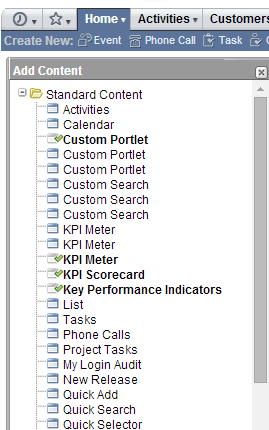
An “Add Content” box will appear on the left, and you can choose from a variety of information which may include standard content, report snapshots or trend graphs. Simply select what you would like to see and it will appear on your dashboard.
Any content you wish to remove can be done so by simply clicking the “x” on the top right of the relevant box (or “portlet”). Similarly, you can minimise each box if you want to keep your dashboard looking clean and simple. On the example below, the “cash management workbench” has been minimised.
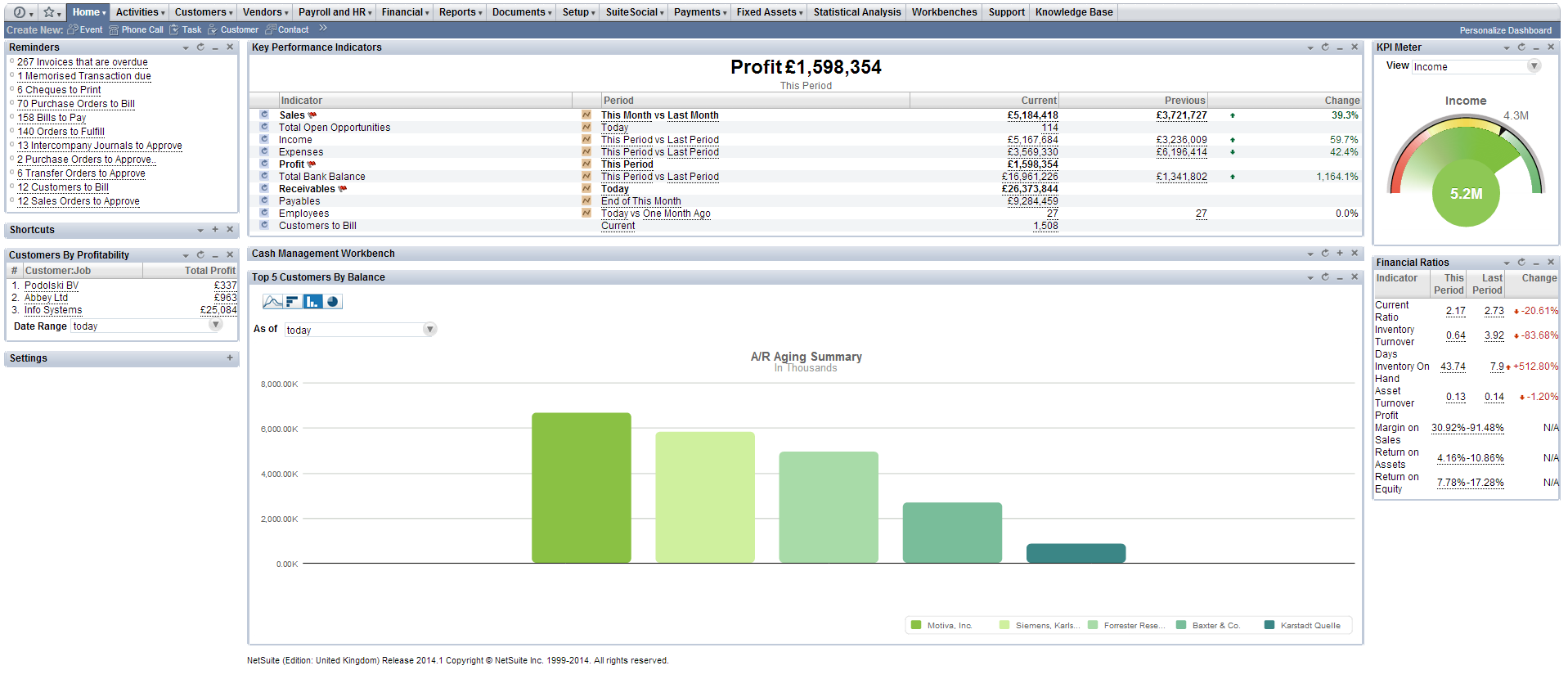
Every box can be dragged around so you can arrange your dashboard to look exactly how you want it, in a one, two or three column layout.
Being able to view the most business-critical information at a glance is one of NetSuite’s major advantages and a useful time-saver, so adding chosen key performance indicators (KPIs) to your NetSuite dashboard is a great way to improve efficiency.
The software enables you to define your own KPIs. Here’s how:

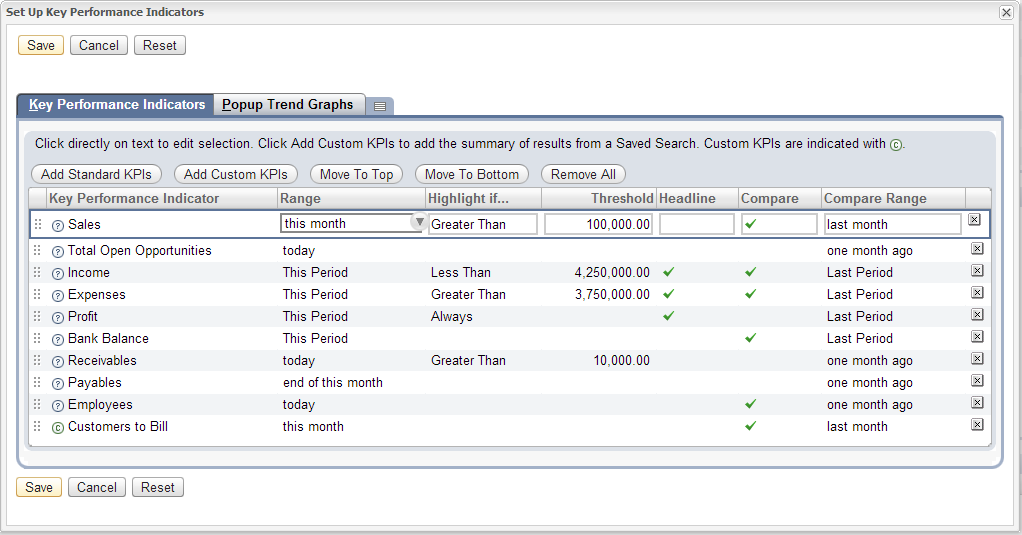
Tip: Want to change the date ranges for comparison? Add the “Quick date selector” portlet, which will adjust the date ranges for all your KPI’s and charts instantly (only available on the home tab).
By using powerful NetSuite tools such as “Quick Add”, available on some dashboards, you can instantly add new records such as leads, opportunities, events and more directly from your dashboard, while “Quick Sort” enables you to view lists of information in the most intuitive manner.
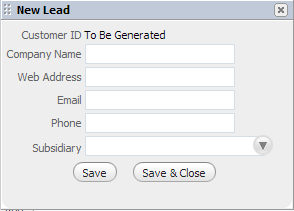
In the tables of data on the dashboards, there is also an “edit/view” column which allows you to view and edit records with a single click, rather than navigating to the record itself.
The “Quick Actions” allow you to instantly carry out an action related to the table of data you are looking at, directly from your dashboard.
For example, whilst a marketer / sales person is in the “Leads” dashboard, they can create and send a letter or email, or even make a phone call directly from the dashboard. This is done by hovering over the down arrow in the “New” column, where a list of the available actions appears.
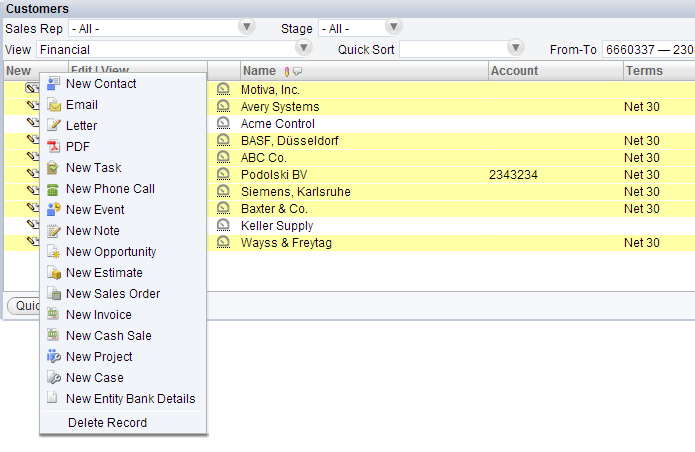
The leads dashboard can also be used to help identify targets that haven’t been contacted in a while, so users can seamlessly undertake all key activities related to chasing up leads from the one location.
Carrying out actions in this way rather than navigating to the relevant record / report can quickly add up to a lot of time saved per day if an employee frequently needs to communicate with customers, partners or prospects.
These are just some of the many customisations and tweaks users can make to NetSuite’s dashboards to optimise them for their own use.
If you would like to find out more about personalising NetSuite, please don’t hesitate to get in touch with our team of experts.
Feel free to share this guide with your colleagues or comment below.
If you’re considering improving your business operations by implementing NetSuite, you could benefit from being supported by a NetSuite partner. Here are 7 reasons why...
In this post, we'll explore some of the signs that it's time for your business to make the move to NetSuite, as well as what improvements you can expect to see. We'll also cover how to make sure the process is as smooth as possible once it begins.
In case you missed it, our recent webinar covered what a great NetSuite integration looks like. Here, we recap what was covered and show you how to determine the good from the bad!
Discover the standout features in NetSuite's 2026.1 Release — from UX improvements and AI tools to enhanced security and bank reconciliation.
Worried your current finance solution is no longer enough? Read our post to discover 7 sure signs you’re ready for something new.
Struggling with data silos in fashion retail? Discover how ERP software improves inventory accuracy, forecasting and financial reporting.

